What is CodexBar? A macOS menu bar utility for tracking AI coding quotas
CodexBar is a macOS menu bar utility that consolidates AI coding services’ quota windows, remaining usage, reset countdowns, and provider status for Claude, Codex, Gemini, Copilot, and others. This article covers its use cases, target users, setup interface, and the high-frequency English terms that appear in its UI.
Many developers feel a familiar but vague sensation the first time they open an English settings page: the terms look familiar, but when you try to explain them, the wording still feels incomplete. Instead of memorizing them mechanically, use a real tool to internalize the vocabulary.
This article takes a macOS utility that is very suitable for programmers, CodexBar, and at the same time introduces how it is used while unpacking the core English terms that appear most often in its interface.
What is CodexBar?
Based on information from the CodexBar website and GitHub homepage as of May 8, 2026, CodexBar is a lightweight tool running in the macOS menu bar, mainly used to track quota windows, remaining quota, reset countdowns, and credits, spend, and status issues for multiple AI coding services.
It is suitable for these users:
- People who use multiple AI coding tools at the same time
- People who frequently care about when 5-hour, weekly, or monthly quotas reset
- People who want to view usage directly in the menu bar instead of opening web pages manually each time
- People whose workflow needs CLI, scripts, or widgets
You can think of it as a “quota dashboard” for AI developers. It focuses on “viewing usage”; if you also want to centrally manage provider model settings and one-click switching, you can pair it with CC Switch.
Why does it deserve to be in an English-learning article?
Because the settings pages of this kind of software are full of high-frequency technical English:
- Usage/statistics words:
usage,quota,breakdown - Account words:
provider,authenticate,keychain - Interface words:
merge,progress,overview - Developer words:
CLI,debug,symlink
These are not just words to memorize for exams—they are real vocabulary you will repeatedly encounter across AI tools, editors, command lines, and browser extensions.
Core vocabulary list
1. General
This set of words comes from CodexBar’s General settings interface and mainly relates to startup behavior, usage statistics, auto refresh, service status checks, and quota alerts.
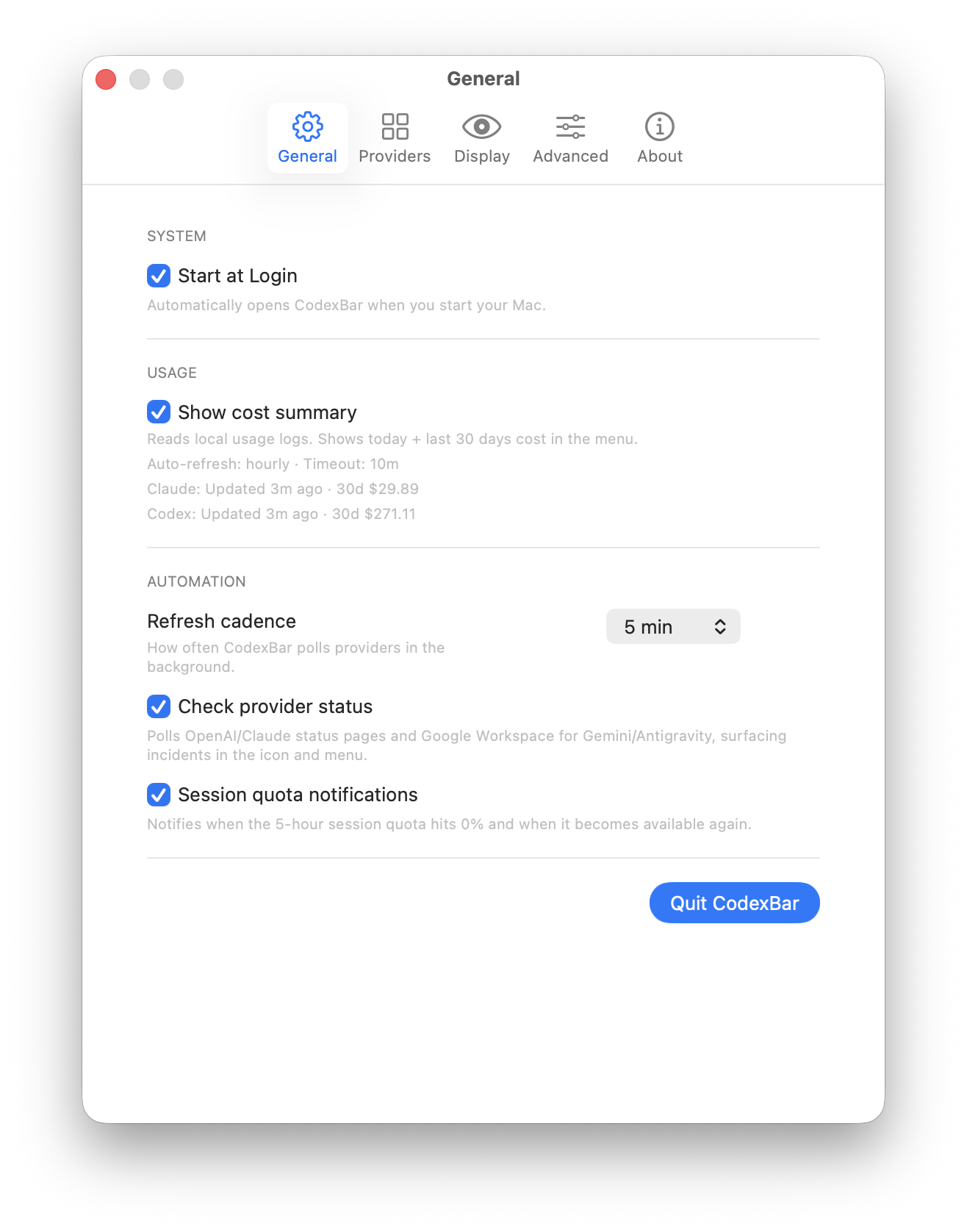
- General (
adj./n.): general; global settings page - System (
n.): system - Start at Login (
phr.): start automatically after login - Automatically (
adv.): automatically - Usage (
n.): usage - Show cost summary (
phr.): show cost summary - Cost (
n.): cost - Summary (
n.): summary, overview - Local usage logs (
phr.): local usage logs - Auto-refresh (
n./v.): auto-refresh - Hourly (
adv./adj.): hourly; by the hour - Timeout (
n.): timeout - Updated (
adj./v.): updated - Automation (
n.): automation - Refresh cadence (
phr.): refresh frequency / rhythm - Poll (
v.): poll, request the latest data on a schedule - Provider (
n.): provider - Provider status (
phr.): provider status - Status page (
n.): status page - Incident (
n.): incident - Surface (
v.): surface, surface alerts - Session quota notifications (
phr.): session quota notifications - Session (
n.): session; one quota accounting window - Quota (
n.): quota, limit - Notification (
n.): notification, alert - Available (
adj.): available - Quit (
v.): quit
You can understand it this way: Start at Login means “open automatically when you sign in”; Show cost summary means “display a cost overview in the menu”; Refresh cadence means “how often it refreshes”; Check provider status means “check whether services like OpenAI and Claude have incidents”; Session quota notifications means “notifying you when quota is exhausted or restored.”
2. Providers
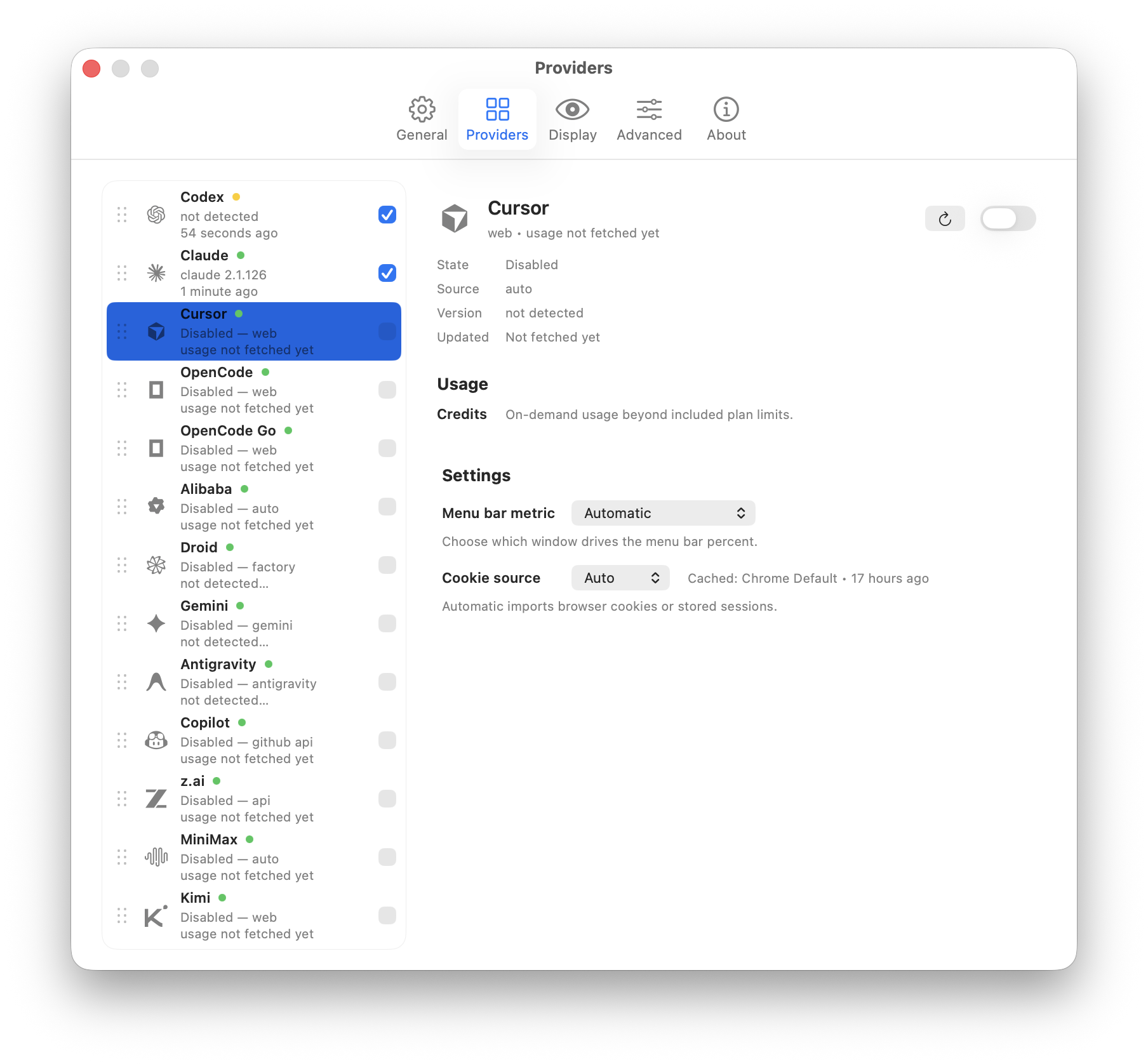
- Providers (
n.): provider list - Provider (
n.): provider; service provider - Codex (
n.): OpenAI Codex / OpenAI-related service - Claude (
n.): Anthropic Claude service - Cursor (
n.): Cursor editor or its account service - OpenCode (
n.): OpenCode service - Gemini (
n.): Google Gemini service - Copilot (
n.): GitHub Copilot service - Detected (
adj./v.): detected - Not detected (
phr.): not detected - Disabled (
adj.): disabled - Web (
n./adj.): web; web-based - API (
n.): application programming interface - GitHub API (
n.): GitHub API - Auto (
adj./adv.): automatic; auto-selection - Factory (
n./adj.): built-in default source; factory defaults - Usage (
n.): usage - Fetched (
adj./v.): fetched - Not fetched yet (
phr.): not fetched yet - State (
n.): state - Source (
n.): source - Version (
n.): version - Updated (
adj./v.): updated - Credits (
n.): credits, balance, available points - On-demand usage (
phr.): on-demand usage - Included plan limits (
phr.): limits included in the plan - Settings (
n.): settings - Menu bar metric (
phr.): menu bar metric - Automatic (
adj.): automatic - Drives (
v.): drives - Percent (
n.): percentage - Cookie source (
phr.): cookie source - Cached (
adj.): cached - Chrome Default (
n.): Chrome default profile - Browser cookies (
n.): browser cookies - Stored sessions (
n.): stored sessions - Refresh (
v./n.): refresh
For example, Disabled — web on the left list means the provider is currently not enabled and the source is web-based; not detected means CodexBar has not detected the corresponding service for now; and usage not fetched yet means usage has not yet been successfully fetched. On the right, Menu bar metric determines which indicator is shown in the menu bar, while Cookie source lets you choose where login information is read from, such as Chrome Default.
3. Display
This set of words comes from CodexBar’s Display settings interface, and mainly controls how the menu bar icon is shown, and which usage, reset time, credits, and account information are displayed in the dropdown menu.
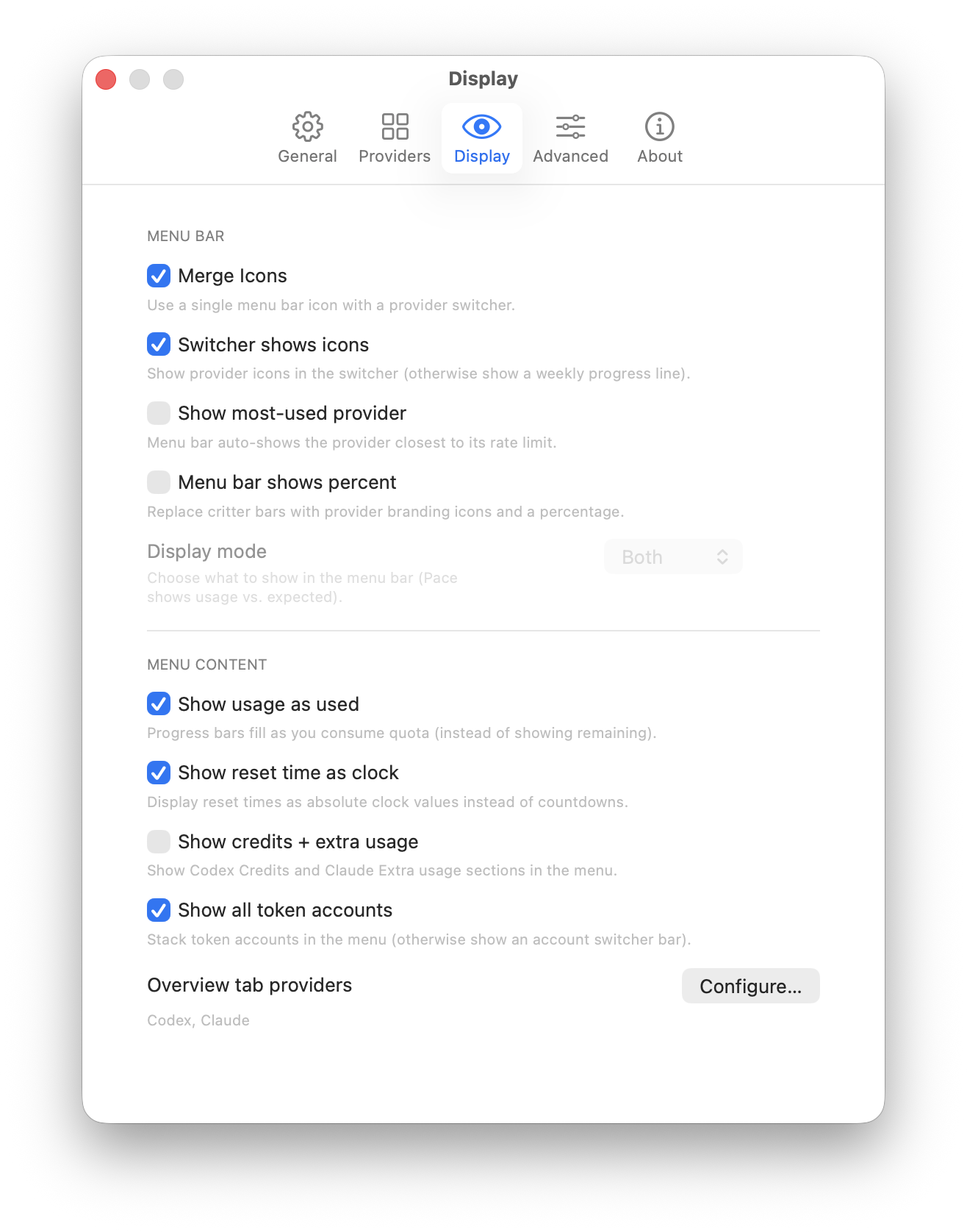
- Display (
v./n.): display; display settings - Menu bar (
n.): menu bar - Merge Icons (
phr.): merge icons - Icon (
n.): icon - Provider switcher (
phr.): provider switcher - Switcher (
n.): switcher - Switcher shows icons (
phr.): switcher shows icons - Provider icons (
phr.): provider icons - Weekly progress line (
phr.): weekly progress line - Show most-used provider (
phr.): show most-used provider - Most-used (
adj.): most used - Closest to its rate limit (
phr.): closest to its rate limit - Rate limit (
n.): rate limit - Menu bar shows percent (
phr.): menu bar shows percentage - Percent (
n.): percentage - Replace (
v.): replace - Critter bars (
n.): critter-style progress bars - Branding icons (
n.): branding icons - Display mode (
n.): display mode - Both (
pron./adj.): both - Pace (
n.): pace; usage speed - Expected (
adj.): expected - Menu content (
n.): menu content - Show usage as used (
phr.): show usage as used - Progress bar (
n.): progress bar - Consume (
v.): consume - Quota (
n.): quota - Remaining (
adj./n.): remaining - Show reset time as clock (
phr.): show reset time as clock - Reset time (
n.): reset time - Absolute clock values (
phr.): absolute clock time values - Countdowns (
n.): countdowns - Show credits + extra usage (
phr.): show credits + extra usage - Credits (
n.): credits, balance, available points - Extra usage (
n.): extra usage - Show all token accounts (
phr.): show all token accounts - Token accounts (
n.): token accounts - Stack (
v./n.): stack - Account switcher bar (
n.): account switcher bar - Overview tab providers (
phr.): overview-tab providers - Overview (
n.): overview - Configure (
v.): configure; set up
You can understand it this way: Merge Icons combines multiple provider icons into one menu bar icon; Switcher shows icons makes the switcher display each provider’s icon; Show most-used provider automatically shows the provider closest to its quota limit; Display mode determines what information appears in the menu bar; Show reset time as clock shows reset time as an absolute time rather than a countdown; and Overview tab providers configures which providers appear in the Overview tab.
4. Advanced
This set of words comes from CodexBar’s Advanced settings interface, and mainly relates to shortcuts, CLI installation, debugging entry points, privacy hiding, local storage scanning, and macOS Keychain permissions.
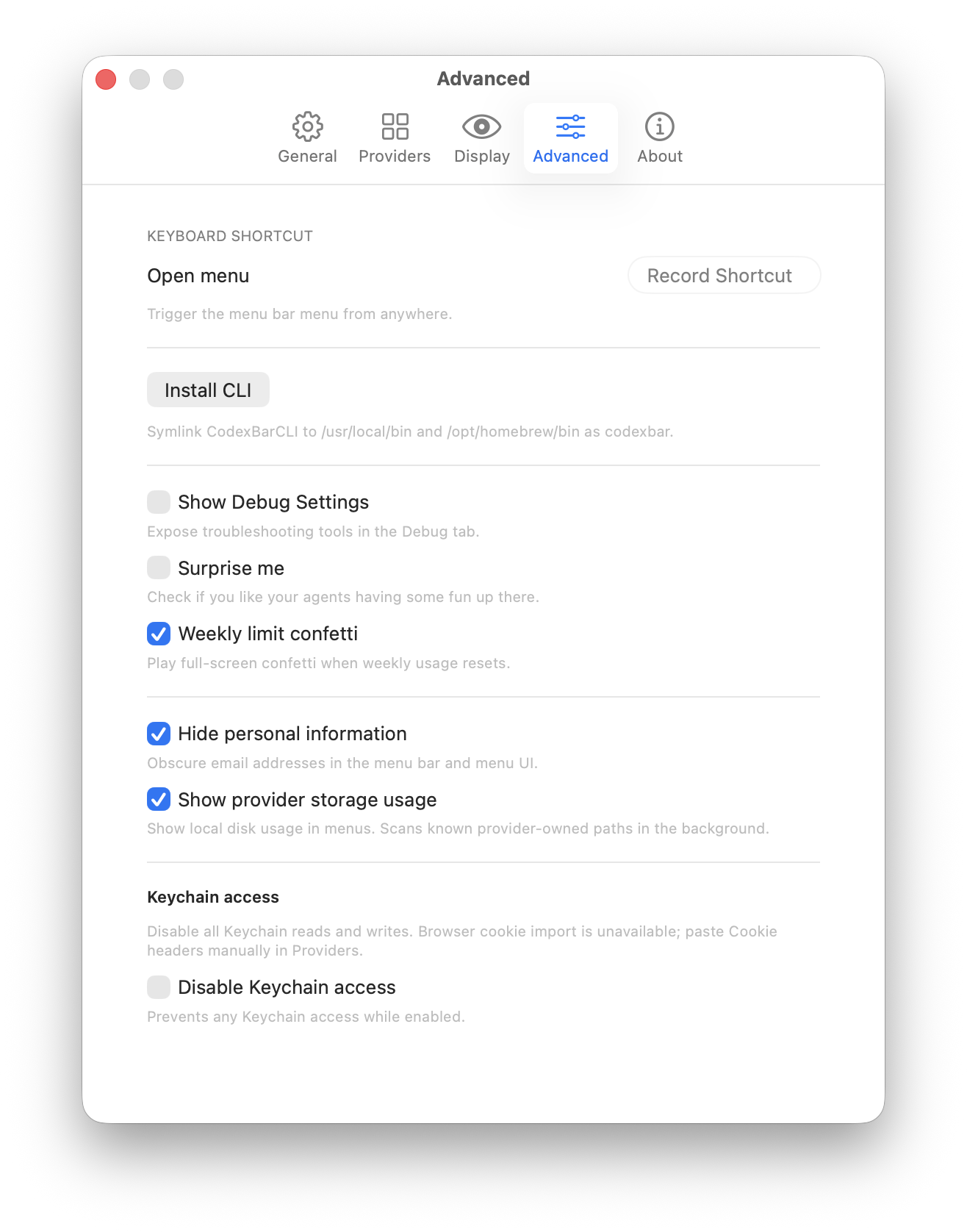
- Advanced (
adj.): advanced; advanced settings - Keyboard shortcut (
n.): keyboard shortcut - Open menu (
phr.): open menu - Trigger (
v./n.): trigger; invoke - Menu bar menu (
n.): menu bar menu - Record Shortcut (
phr.): record a shortcut; set a shortcut - Install CLI (
phr.): install command-line tool - CLI (Command Line Interface) (
n.): command-line interface - Symlink (
v./n.): create symbolic link; symbolic link - CodexBarCLI (
n.): CodexBar command-line program - /usr/local/bin (
path): common CLI installation path - /opt/homebrew/bin (
path): common Homebrew installation path on Apple Silicon Macs - Show Debug Settings (
phr.): show debug settings - Debug (
v./n.): debug; troubleshoot - Troubleshooting tools (
n.): troubleshooting tools - Expose (
v.): expose; reveal - Debug tab (
n.): debug tab - Surprise me (
phr.): surprise me - Agents (
n.): agents - Weekly limit confetti (
phr.): weekly-limit confetti - Full-screen confetti (
n.): full-screen confetti - Weekly usage (
n.): weekly usage - Reset (
v./n.): reset; reset point for quota - Hide personal information (
phr.): hide personal information - Personal information (
n.): personal information - Obscure (
v.): obscure; mask - Email addresses (
n.): email addresses - Menu UI (
n.): menu UI - Show provider storage usage (
phr.): show provider storage usage - Provider-owned paths (
n.): provider-owned local paths - Local disk usage (
n.): local disk usage - Scan (
v.): scan - Background (
n.): background - Keychain access (
n.): macOS Keychain access permissions - Keychain reads and writes (
phr.): keychain reads and writes - Browser cookie import (
phr.): browser cookie import - Unavailable (
adj.): unavailable - Paste Cookie headers manually (
phr.): paste cookie headers manually - Disable Keychain access (
phr.): disable Keychain access - Prevent (
v.): prevent - Enabled (
adj.): enabled
You can understand it this way: Record Shortcut lets you enter a shortcut key to open the CodexBar menu from anywhere; Install CLI places a symlink for CodexBarCLI in /usr/local/bin and /opt/homebrew/bin so you can use the codexbar command in Terminal; Show Debug Settings displays troubleshooting tools in the Debug tab; Hide personal information masks emails and other personal data in the menu; Show provider storage usage scans local storage usage in provider-owned paths; Disable Keychain access prevents CodexBar from reading and writing the macOS Keychain, which may make automatic browser cookie import unavailable and require manual cookie header pasting in Providers.
Remember CodexBar in one sentence
If you need the most concise description, you can write:
<blockquote> CodexBar is a macOS menu bar app that tracks AI coding usage limits, reset windows, and provider status at a glance. </blockquote>
In English, that reads:
“CodexBar is a macOS menu bar utility for quickly checking AI coding usage limits, reset times, and platform status.”
Common Questions
What does CodexBar do?
CodexBar is a macOS menu bar utility for centrally viewing quota windows, remaining usage, reset countdowns, and provider status across multiple AI coding services, so you avoid opening webpages to manually check usage every time.
Which AI services does CodexBar support?
On the Providers page, it can detect and manage services such as Codex (OpenAI), Claude, Cursor, OpenCode, Gemini, and Copilot, with states including detected / not detected / disabled.
How do I install the CLI for CodexBar?
In Advanced settings, click Install CLI. It uses a symlink to place CodexBarCLI in /usr/local/bin and /opt/homebrew/bin, then you can use the codexbar command in the terminal.
Is reading browser cookies and Keychain with CodexBar safe?
It needs to read login information from browsers such as Chrome to query usage. If you have concerns, you can enable Hide personal information in Advanced to mask email addresses and other personal data, or disable Keychain access. If disabled, automatic browser cookie import may become unavailable, and you will need to paste cookie headers manually in Providers.
Related links
- Website: codexbar.app
- GitHub repository: steipete/CodexBar
- GitHub Releases: Download the latest version
- CLI documentation: CodexBar CLI
- Configuration documentation: configuration.md
- Providers documentation: providers.md
Next time you open an English software settings page, don’t skip it immediately. If you align interface terms with actual functionality, what you learn will not be isolated vocabulary, but technical English you can directly apply in real workflows.
Share